Colliders And Shapes
What Is a Collider
A collider defines how an object participates in collision detection. It describes the shape and boundaries used by the engine to determine when two objects overlap or make contact.
In Excalibur, a collider is separate from an actor’s visual representation. Sprites, animations, and effects determine how an object is drawn, while colliders determine how that object interacts with other objects in the world. This separation allows collision behavior to remain consistent even when visuals change.
A collider does not need to match the size or shape of a sprite exactly. In practice, colliders are often simplified to make interactions more predictable. For example, a character sprite may include empty space or visual detail that should not affect collision, while its collider represents only the area intended to block movement or receive hits.
Colliders are attached to an actor’s body and are evaluated by the engine each frame to determine overlaps and contacts with other colliders. An actor may use one or multiple colliders, depending on the types of interactions it needs to support.
At a basic level, colliders serve two purposes:
- Defining the physical space an object occupies for collision
- Enabling detection of overlap for gameplay interactions
The Collider Component
In ExcaliburJS, the ColliderComponent is the actor’s “collision manager.” It is responsible for holding and managing a collider and connecting it to the engine’s collision system. While a collider defines the shape of an object, the ColliderComponent handles how that shape behaves in the world and how it interacts with other objects.
Key points about the ColliderComponent:
-
Holds colliders
The component can store a single collider or a composite of multiple colliders, which allows an actor to have multiple colliders combined into a single shape.
-
Manages collider updates
When an actor moves or rotates, the component updates its colliders to match the actor’s transform, ensuring collision detection remains accurate.
-
Handles collision events
It emits events like collisionstart, collisionend, precollision, and postcollision. These events can be used by the actor or gameplay code to respond to collisions.
-
Provides utility methods for common shapes
The component makes it easy to assign standard colliders, like boxes, circles, polygons, edges, or composite shapes, through methods like useBoxCollider, useCircleCollider, and useCompositeCollider.
In short, the ColliderComponent acts as the bridge between an actor and the collision system: it contains the geometry, updates it as the actor moves, and communicates collisions to the rest of the engine. Without this component, an actor has no collision behavior.
Shapes
In ExcaliburJS, a shape defines the geometric boundaries of a collider. While the ColliderComponent manages collision behavior and events, the shape describes the physical area the collider occupies in the world.
Common Shapes in Excalibur
Excalibur provides several shapes to cover typical game needs:
- Box (Rectangle)
Most common for platformers, top-down games, and walls. Simple, fast to calculate, and predictable for movement blocking.
- Circle
Often used for characters, bullets, or pickup zones. Rotates naturally without changing collision behavior.
- Polygon
Flexible shapes for irregular or complex objects. Supports convex shapes, useful for angled platforms or obstacles.
- Edge
Defines a line segment rather than a filled area. Useful for slopes, boundaries, or one-way interactions.
- Composite
Combines multiple shapes into a single collider. Allows complex actors to have different interaction zones, like a player with a hitbox and a separate trigger zone for area effects. Useful for drawing keep-in or keep-out boundaries for an area.
A composite collider is a way of treating multiple pieces of geometry as one collider, this means there is a choice about how to resolve collisions.
Composite Collision Resolution Strategy
- 'together' - Treat all geometry as part of the same body, meaning only 1 contact is possible for the composite, and only 1 event is generated.
- 'separate' - Treat geometry as if it were part of separate bodies, a contact is possible for every piece of geometry, an event is generated for every contact.
Set the default for all composites as engine config
typescript
typescript
Or per composite collider, this will override any default config
typescript
typescript
Rule of Thumb
- If your composite is connected and has no large gaps, use 'together'
- If your composite is a level like a platformer with large gaps, use 'separate'
Adding a Shape to an Actor
Let's discuss the two ways this can happen.
- By default in Actor construction
- Manually
Constructor
When you define an Actor, if you provide dimension data, either width/height, or a radius, Excalibur automatically attaches a shape.
-
Width/Height
If you provide these dimensions, a Box shape collider is automatically attached
-
Radius
If you provide a radius, a Circle collider is automatically attached
Manually
If neither are provide, no collider gets attached and one would have to manually define their desired shape, then attach it to the collider component. In code you can call the set method on the collider component and it can attach a new custom collider shape.
ts
ts
Debug Mode and Developer Tools
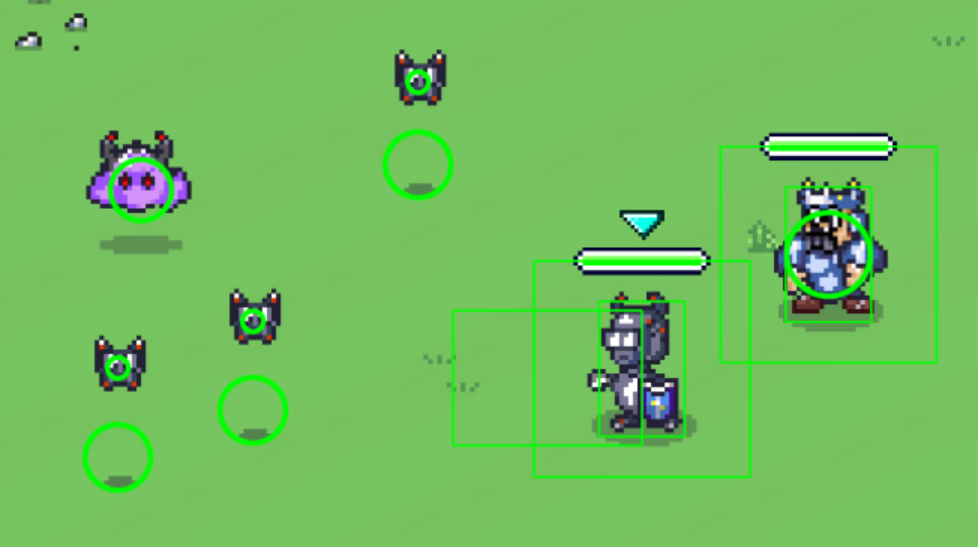
When working with colliders, one of the most useful features in ExcaliburJS is debug mode. Since colliders are invisible during normal gameplay, it can be hard to understand why collisions behave a certain way. Debug mode lets you visualize the shapes, boundaries, and interaction zones directly on the screen.
ts
ts
Key benefits of debug mode:
- See collider shapes in real time: Boxes, circles, polygons, and edges are rendered so you can confirm they align with your actor or gameplay area.
- Verify offsets and anchors: When a collider doesn’t match your expectations, debug mode makes it clear whether it’s misaligned or sized incorrectly.
- Watch collision events: You can observe when collisions start, end, or overlap, which helps identify unintended behavior.
For developers, debug mode is a powerful tool to demystify collision. It turns invisible gameplay rules into something tangible, making it easier to reason about movement, triggers, hitboxes, and other interactions. Most issues that feel “mysterious” in collision can be diagnosed simply by turning on debug visualization.
Even simple shapes like boxes or circles rendered in debug mode provide immediate insight into why collisions succeed or fail, which is invaluable when learning how colliders work.
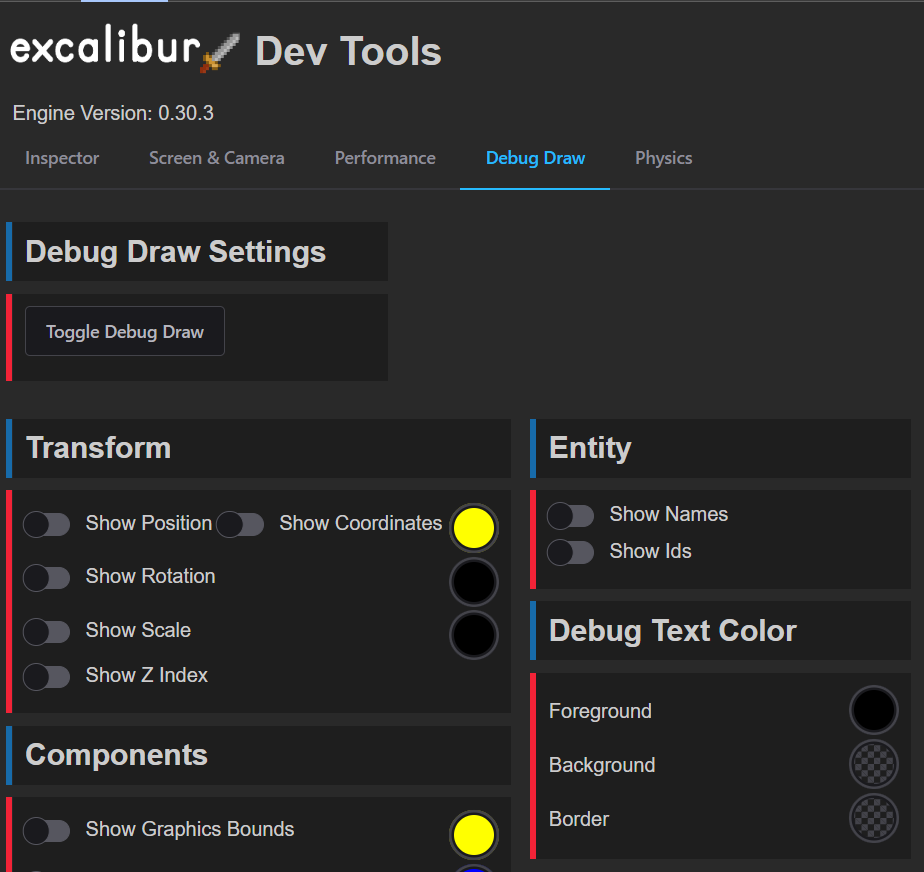
Dev Tools
Excalibur has a browser extension tool that you can install, and it can help identify issues and enable debug mode as well..